

Create a Custom Program
Programs are apps inside the simulated OS — Explorer, Terminal, Store, or your own tools. Each program is a class derived from UOperatingSystemBaseProgram with optional widget, settings, and data classes.
Detailed property tables: New Program.
flowchart TB
  subgraph row1[" "]
    direction LR
    BP["UOperatingSystemBaseProgram"] --> Widget["UOperatingSystemProgramWidget"]
    BP --> Icon["UOperatingSystemProgramIconWidget"]
    BP --> Settings["UOperatingSystemProgramSettings"]
  end
  subgraph row2[" "]
    direction LR
    OS["UOperatingSystem"] -->|"Install program"| BP
    Widget --> UI["UMG program window"]
  end
Step 1 — Create the program Blueprint
Section titled “Step 1 — Create the program Blueprint”- Content Browser → Blueprint Class
- Search Operating System Base Program
- Name it
BP_Prog_MyApp - Re-open the asset to enter data-only view
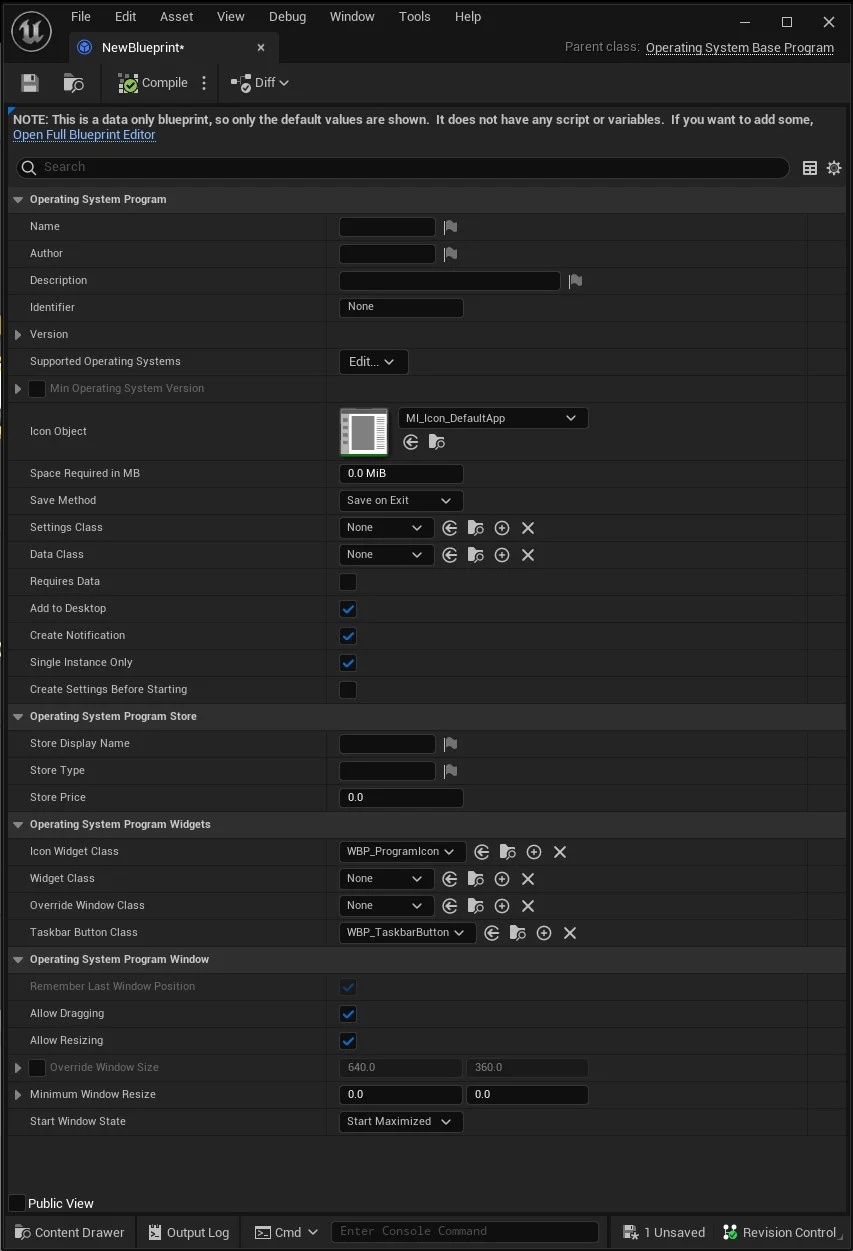
Step 2 — Required properties
Section titled “Step 2 — Required properties”| Property | Guidance |
|---|---|
| Name | Display name in Store and title bar |
| Identifier | Unique FName — never duplicate across programs |
| Version | FOperatingSystemVersion |
| Widget Class | Main UMG UI — subclass UOperatingSystemProgramWidget |
| Icon Widget Class | Desktop/taskbar icon — UOperatingSystemProgramIconWidget |
Step 3 — Widget Blueprint
Section titled “Step 3 — Widget Blueprint”- Create Widget Blueprint parented to Operating System Program Widget (duplicate
WBP_Programfrom plugin as a starting point). - Assign to Widget Class on the program.
- In the widget Graph, use Get Owning Program to reach program settings and data.
Widget graph flow
Section titled “Widget graph flow”flowchart LR NC["Native Construct"] --> GOP["Get Owning Program"] GOP --> GPS["Get Program Settings<br/><i>cast to your settings class</i>"] GOP --> GPD["Get Program Data<br/><i>if Data Class set</i>"] GOP --> GOS["Get Operating System"] GOS --> FS["Filesystem / notifications / install"]
Bundled reference: open WBP_Mail or WBP_Calculator under OperatingSystemContent/Shared/Blueprints/Widgets/Programs/ after duplicating into your project.
Step 4 — Install the program
Section titled “Step 4 — Install the program”Add your program class to one of:
- Must Have Programs on your OS Blueprint (pre-installed)
- Post Install Startup Programs (optional install set)
- Store collection Data Asset for in-game installation
Collections live under OperatingSystemContent/.../Programs/ — duplicate into your project.
Step 5 — Validate (optional)
Section titled “Step 5 — Validate (optional)”Override On Validate to block broken configs:
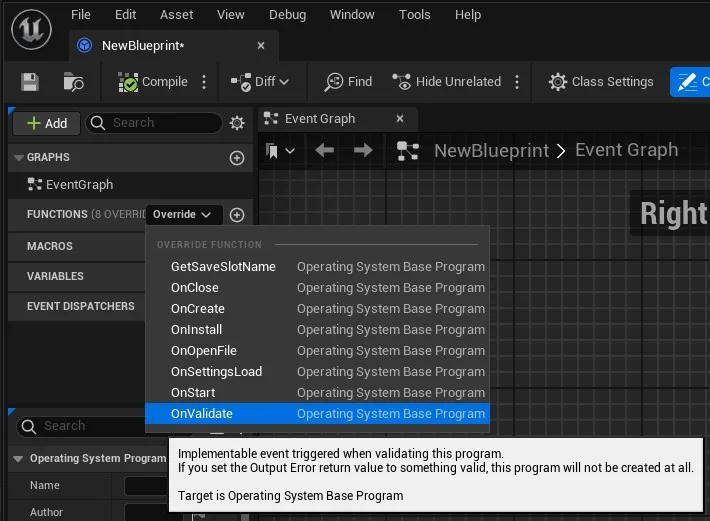
Return Create Generic Error when validation fails — same pattern as C++ OnValidate in New Program.
Program lifecycle
Section titled “Program lifecycle”stateDiagram-v2 [*] --> Installed: OS boot / Store install Installed --> Validated: On Validate Validated --> Running: Player double-clicks icon Running --> Running: On Program Started Running --> Idle: Player closes window Idle --> Running: Launch again Idle --> [*]: OS shutdown (SaveOnExit)
Step 6 — Run
Section titled “Step 6 — Run”Boot the device. Your program should appear in the Start menu / desktop after install. Launch it and confirm window drag, taskbar button, and focus states (EOperatingSystemProgramViewState).
Window behavior
Section titled “Window behavior”| Property | Effect |
|---|---|
| Allow Dragging / Allow Resizing | Draggable window chrome via Draggable Window integration |
| Override Window Class | Per-program window frame |
| Single Instance Only | One process at a time |
| Start Window State | Normal, maximized, minimized |
Next steps
Section titled “Next steps”| Goal | Tutorial |
|---|---|
| Native C++ program | C++ program from scratch |
| Custom file extension | Custom file type |
| Persist settings | Save and load |