

Troubleshooting
Plugin failed to load — module GlobalCore could not be found
Section titled “Plugin failed to load — module GlobalCore could not be found”When you enable Operating System Simulator on a project that has not been compiled with the plugin yet, Unreal may show:
Plugin 'OperatingSystemSimulator' failed to load because module 'GlobalCore'could not be found. Please ensure the plugin is properly installed, otherwiseconsider disabling the plugin for this project.GlobalCore is a C++ module shipped with the plugin. The editor looks for compiled module binaries; until you build the project once with the plugin enabled, that module is missing.
Fix — generate project files and build
Section titled “Fix — generate project files and build”- Right-click your
.uprojectfile in Windows Explorer. - Select Generate Visual Studio project files.
- Open the newly generated
.slnfile in Visual Studio. - In Solution Explorer, right-click your game project (not the Engine target) and select Build.
- When the build succeeds, reopen the project in Unreal Editor.
flowchart LR
  UProject[".uproject"] --> Gen["Generate VS project files"]
  Gen --> SLN["Open .sln"]
  SLN --> Build["Build game project"]
  Build --> UE["Reopen Unreal Editor"]
Prerequisites
Section titled “Prerequisites”- Visual Studio (or your platform IDE) with Desktop development with C++ / Unreal Engine workload installed.
- If Generate Visual Studio project files is missing from the context menu, install the Unreal Engine version’s Visual Studio integration or run UnrealVersionSelector from the Engine install.
Blueprint-only projects
Section titled “Blueprint-only projects”This fix still applies. Generating Visual Studio project files adds the Source/ folder and C++ project files your game needs so marketplace plugins can compile. You do not need to write C++ yourself — a successful build is enough for the plugin modules to load.
Still failing?
Section titled “Still failing?”- Confirm Operating System Simulator appears under Edit → Plugins and is enabled for your project.
- Delete
Binaries/andIntermediate/in your project folder, then repeat the build steps above. - Verify the plugin installed under
Plugins/or the Engine marketplace folder without missing files. - For help, join Discord or contact us.
flowchart TB
  subgraph row1[" "]
    direction LR
    Fail["Plugin failed to load"] --> GC{"Module GlobalCore could not be found?"}
  end
  subgraph row2[" "]
    direction LR
    VS["Generate Visual Studio project files + Build"] --- Files["Check plugin files / reinstall"]
  end
  subgraph row3[" "]
    direction LR
    OK["Reopen Unreal Editor"]
  end
  GC -->|Yes| VS
  GC -->|No| Files
  VS --> OK
  Files --> OK
CCTV — ERR_DATA_NULL / no CCTV actors in world
Section titled “CCTV — ERR_DATA_NULL / no CCTV actors in world”When BP_Prog_CCTV (or a child such as BP_Prog_CCTV_C) is registered on your operating system but no AOperatingSystemCCTVActor exists in the level, program installation fails during OS boot.
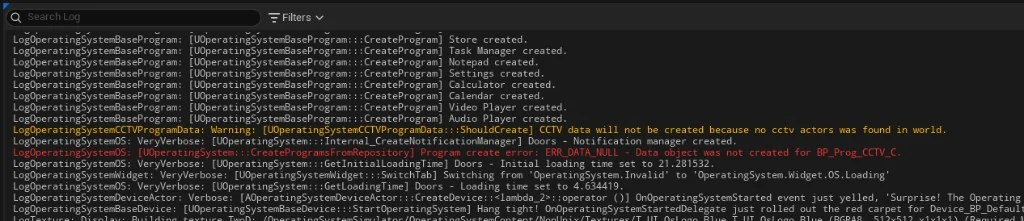
What the log means
Section titled “What the log means”The messages appear in order during UOperatingSystem::CreateProgramsFromRepository:
| Log | Source | Meaning |
|---|---|---|
Warning: CCTV data will not be created because no cctv actors was found in world. | UOperatingSystemCCTVProgramData::ShouldCreate | The CCTV data object checks the world for registered camera actors. None were found, so data creation is skipped. |
Error: ERR_DATA_NULL - Data object was not created for BP_Prog_CCTV_C. | UOperatingSystem::CreateProgramsFromRepository | CCTV requires a data object (bRequiresData = true). Because ShouldCreate returned false, the OS reports a null data error for your program Blueprint. |
flowchart TB
  Boot["OS boots · CreateProgramsFromRepository"]
  CCTV["BP_Prog_CCTV in Must Have Programs"]
  Should["ShouldCreate — any CCTV actors in world?"]
  Data["Create UOperatingSystemCCTVProgramData"]
  Err["ERR_DATA_NULL"]

  Boot --> CCTV --> Should
  Should -->|Yes| Data
  Should -->|No| Warn["Warning: no cctv actors"]
  Warn --> Err
- Place at least one camera in the same level as your
AOperatingSystemDeviceActor:- Drag BP_CCTV_Actor from
OperatingSystemContent/Shared/Blueprints/Actors/CCTV/ - Ensure Start Activated is
true(default) so the actor registers on BeginPlay
- Drag BP_CCTV_Actor from
- Press Play again — the warning and error should disappear from the output log.
- If you are not ready to use CCTV yet, remove BP_Prog_CCTV from your programs collection (
DA_*_ProgramsCollection→ Must Have Programs) until cameras are placed.
Still seeing the error?
Section titled “Still seeing the error?”| Check | Action |
|---|---|
| Camera in a sub-level | Ensure the sub-level is loaded when the OS boots, or place cameras in the persistent level |
| Start Activated is false | Set to true, or call Activate on the camera before OS init |
| Wrong map | Cameras must be in the same world the player enters in PIE |
Custom BP_Prog_CCTV child | Same rules apply — data class must be BP_Prog_CCTVData (or child) and cameras must exist |
→ Full setup: CCTV setup · Camera actor
Related
Section titled “Related”- Getting started — enable plugin content and open the demo map
- Packaging — fix common cook / package errors