

Getting Started
Enable Objective Waypoint System in Edit → Plugins, ensure your level has a built nav mesh, then add Waypoint Component to your player.
Blueprint-only project
Section titled “Blueprint-only project”- Open your Character or Pawn Blueprint.
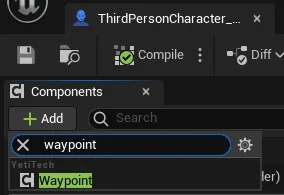
- Add Component → Waypoint Component.
- Configure Navigation Mode, Mesh Distance, and Tick Method in Details.
- Call Find Path to Actor or Find Path to Location from quest / input logic.
flowchart LR
  Enable[Enable plugin] --> Add[Add Waypoint Component]
  Add --> Nav[Build nav mesh]
  Nav --> Call[Find Path to Actor]
C++ project
Section titled “C++ project”Build.cs:
PrivateDependencyModuleNames.AddRange(new string[] { "ObjectiveWaypointSystem" });Header:
#include "WaypointComponent.h"
UPROPERTY(VisibleAnywhere, BlueprintReadOnly)TObjectPtr<UWaypointComponent> WaypointComponent;
Constructor:
WaypointComponent = CreateDefaultSubobject<UWaypointComponent>(TEXT("WaypointComponent"));Example call:
WaypointComponent->FindPathToActor(QuestTarget);// orWaypointComponent->FindPathToLocation(MinimapWorldPoint);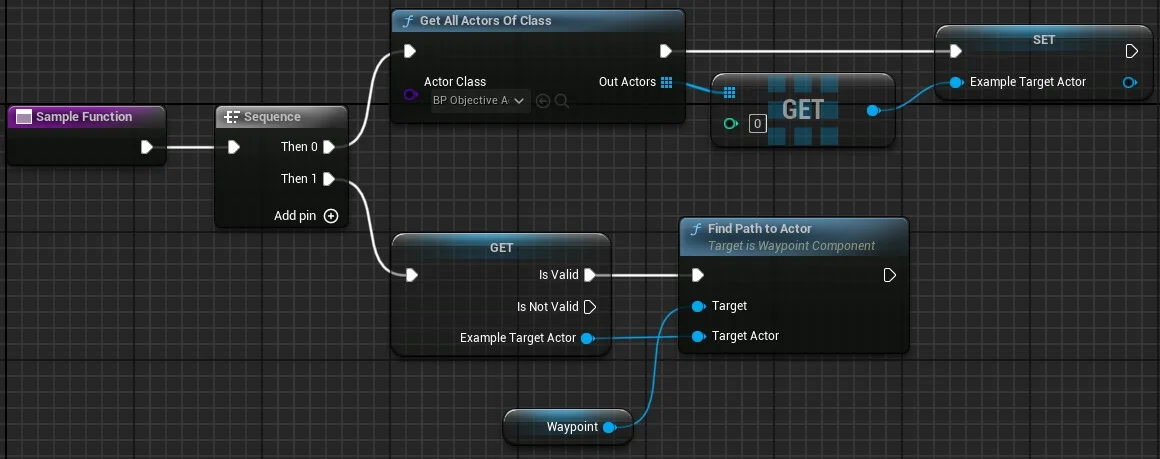
First path call (Blueprint)
Section titled “First path call (Blueprint)”Input Action "FindObjective" → Get Waypoint Component → Find Path to Actor (ObjectiveActor)| Property | Starting value | Notes |
|---|---|---|
| Navigation Mode | Spawn | Or Spline for ground trail |
| Spawn Type Method | Instanced | Best performance; use Actor for per-marker Blueprints |
| Mesh Distance | 250 | Spacing between markers |
| Tick Method | Time | Set Tick Time 0.5 to refresh moving targets |
- Tutorials — find path to actor
- C++ reference
- Blueprint package docs if you prefer migrate-in assets